
Set up a clear photograph
Place one card on a flat, contrasting surface. Keep all four physical corners visible and use even, diffuse lighting. Move the light or phone if a reflection hides an edge. Keep the camera as parallel to the card as practical. For a sleeved or reflective card, make sure you can distinguish the card itself from the sleeve.
Example from CardGrader
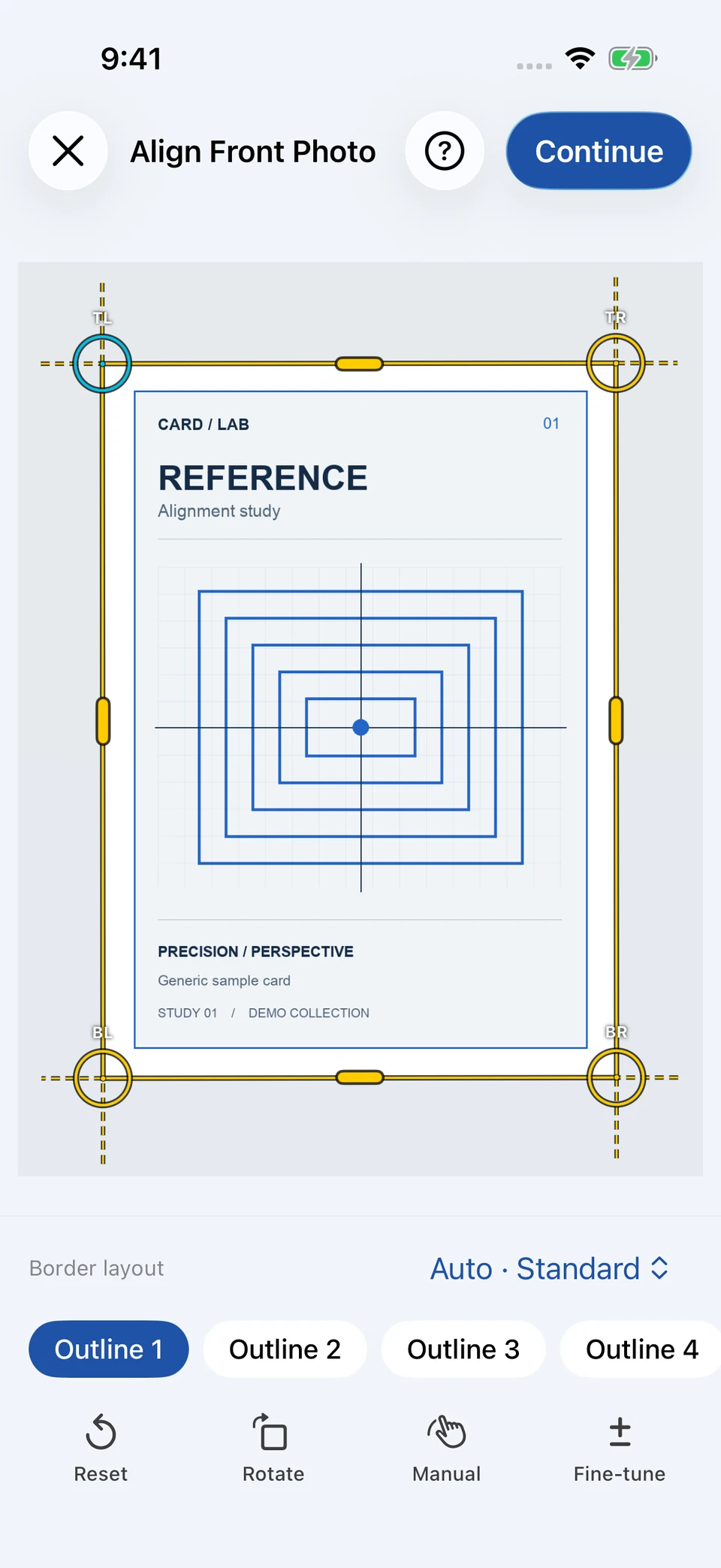
Check all four physical corners before continuing. The outer outline straightens the photograph; it is separate from the printed border used for centering.
Actual app capture · original demo artwork
See the full app walkthrough →Genuine iPhone simulator capture. The geometric reference card is original demo artwork. The screenshot illustrates the controls, not performance on real card photographs.
Import and align in CardGrader
Open Scan and import a photo or use the camera. Check the detected outline against the physical card corners, not the printed artwork. Drag all four handles as needed, use magnified editing for precision, and reset if the outline is wrong. Manual placement remains available when detection fails.
Check the corrected image before saving
Compare the original and corrected views. Perspective correction straightens the photographed plane; it cannot repair blur, glare, lens distortion, bends, or missing detail. Retake an unclear photo instead of treating the correction as a restoration. CardGrader preserves the original and stores the corrected image separately.
Add the back and keep the context
Add an optional back, then save your images and notes together. An unscanned side remains unassessed. Scanning and the local library work offline without an account. Continue with the centering guide or the condition checklist below.